
How to Run a Private LLM Server on an Old Laptop

Updated October 2026: Windows 10 support ended almost exactly a year ago (which feels like a lifetime). I've refreshed this guide, and added some fun details: an LLM server primer, a hardware sizing guide, and a look at some of the other tools that are now out there besides LM Studio.
I'm giving my old gaming laptop a second lease on life by turning it into a private LLM server and building a user-friendly web interface to access it. In this guide, I’ll walk you through the hows and the whys. I'll start with how to set everything up (Linux, LM Studio, and a Phoenix web app), and then talk about why I'm bothering to do this in the first place!
What are you going to do with your old gaming laptop? Windows 10 ended support almost a year ago (in October 2025). Microsoft has since stretched its Extended Security Updates for home users out to October 2027, but that's a stay of execution, not a pardon. You might be facing this question, just as I was. I'm lucky enough to have my extremely old gaming laptop still (circa 2013, and therefore ~164 years old), which has been there for me through thick and thin. Because it lacks a TPM (Trusted Platform Module) on the motherboard, I couldn't upgrade it to Windows 11, which left me owning a computer that no longer gets security updates.
I decided that I should install Linux to keep it secure, and then set it up as a permanent, private LLM server. While I like LLMs and using AI as much as the next person (and most of the security policies are fairly sturdy), at the end of the day, there's information I just don't want out there in any capacity. My background is in Psychology, and I love the idea of being able to paste sensitive journal entries into an LLM to glean insights about myself from an outside lens: but there's no way I want that data being exposed to an outside source.
Of course, I don't have the petaflops to spare to train my models, or banks of GPUs to generate the responses: all I have is my old but trusty AMD Radeon HD 8970M, which saw me through many a firefight in Counter-Strike and heist in GTA.
Just what is an LLM server anyway?
You might have absolutely no idea what I'm talking about, and that's okay! Here's a quick list of terms that should aid your understanding (maybe).
| Question | Short answer |
|---|---|
| What is an LLM server? | A computer that runs a large language model and makes it available to other apps, usually through an OpenAI-compatible API. |
| Is this one of them DATA CENTERS?! | No. Well yes. But no, not really. Okay, maybe it's just a really small one? That's just for you. |
| I can run these models locally?! | Yes. Tools like LM Studio, Ollama, and llama.cpp make it practical on surprisingly bad hardware (even, as you'll see, a 2013 gaming laptop). |
| Do I need a GPU? | No, but a supported GPU makes responses dramatically faster. |
| Why should I bother running one myself? | Privacy, keeping your data on your own machine, predictable costs, and full control over which models you run. And no one's going to come after you for your water usage. |
| Can other devices on my network use it? | Yes. Turn on network serving and any device or app on your local network can send it requests. |
Before You Begin: Check Your Specs
My laptop has:
- 8 GB of RAM
- An AMD Radeon HD 8970M (running a switchable graphics setup) with 4GB of vRAM
- An ancient i7 quad-core CPU (clocking in at 2.7GHz)
This is probably right at the low end of what you need if you want to load and run a pretty decent LLM smoothly. The power of my machine does limit my choice of models: I can't load larger LLMs due to low memory, and I can't use the most sophisticated models due to the sluggish performance of my GPU and CPU. I don't have the patience to wait 20 minutes for a response!
Nevertheless, I can run private LLMs that are localized to my network, and good enough for my purposes.
If you don't think your laptop can handle it, check at the end of the article for other options I considered besides running a private LLM server!
My M4 with 24GB of RAM runs every LLM I've loaded into it with ease - but I got other stuff to do, you know?
How Much Machine Do You Need?
Three bits of jargon first, because the rest of this section leans on them:
- Parameters are the numbers a model learned during training. A "7B" model has about 7 billion of them, and more parameters generally means a smarter (and hungrier) model.
- Quantization stores each of those numbers with fewer bits (say 4 instead of 16), so the model shrinks to a fraction of its size for a small hit in quality. Most models you download for local use come quantized.
- vRAM is the memory on your graphics card. The model has to fit in memory to run: in vRAM if it's running fully on the GPU, otherwise in your system RAM (or split between the two).
With that out of the way, here's a rough rule of thumb for how much memory a model needs:
Memory needed (GB) ≈ parameters (in billions) × bits per weight ÷ 8 × 1.25
So a 7B model quantized to 4 bits works out to about 7 × 4 ÷ 8 × 1.25 ≈ 4.4 GB. Treat that as a floor, not a ceiling: longer context windows, bigger batches, and multiple requests at once all add memory on top.
The table below assumes ~4-bit quantized models, which is what you'll usually be downloading in LM Studio or Ollama:
| Model size | Memory | Good for |
|---|---|---|
| 1B–3B | 4–8 GB | Lightweight assistants, classification, testing on low-spec machines (hi, it's me) |
| 7B–8B | 8–16 GB | General chat, summarization, everyday coding help |
| 12B–14B | 16–24 GB | Stronger reasoning, more complex code, longer context |
| 70B+ | 48 GB+, often much more | High-memory workstations, multi-GPU rigs, or proper server hardware |
My 8GB laptop lives firmly in the top row. These days I mostly run Phi-4-mini, Qwen3 4B, and Llama 3.2 3B on it.
Part One - Laptop Setup and Running the Private LLM Server
1. Installing Linux - choices, choices
The first step here is to install a Linux distribution. There are literally thousands (and I do mean literally) of blog posts, forum guides, and angry nerds who can help you pick a Linux distro that is right for you(I don't use Arch, btw). In the end, I'm basic, so I chose Ubuntu because it’s fairly beginner-friendly and easy to install. Importantly, the latest LTS is guaranteed to be supported for a long time - I chose one that will end in Apr 2029(!). Check out this guide for a step-by-step walkthrough on how to install it.
2. Utilizing your GPU
Now I faced the really big question: how was I planning to actually run those large language models? I really, really wanted to use my GPU to speed up my response generation, rather than just using my CPU. Unfortunately, ROCm (Radeon's official open-source software for running models on GPUs) isn't supported by many cards - and my ancient gaming GPU is definitely not on that list. However, there is another way.
There's an easy-to-use tool called LM studio, which comes packed full of features, as well as a lovely UI. In addition to being able to choose, download, and run models directly from Hugging Face in the app, you can set up an LM server to serve this model over an 'OpenAI like' API.
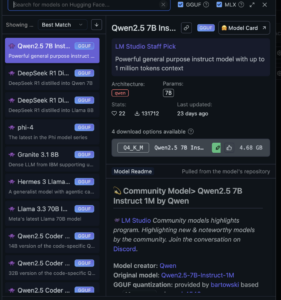 So many models to choose from
But the real secret sauce here is the ability to offload layers of the model to your GPU, drastically speeding up response times, even if you have an older GPU (like me). LM Studio uses Vulkan (an open-source, cross-platform graphics and compute API) to handle the model's inference tasks. This involves splitting computations across multiple parallel processes, where the GPU processes layers or chunks of the model more efficiently than the CPU. Problem solved!
LM Studio isn't the only option
When I first wrote this article, LM Studio was the right fit for me: the space was new, I wanted a GUI for browsing models, and its Vulkan support worked with my not-officially-supported AMD card. But depending on what you're building, one of these might suit you better (I've actually moved on to Ollama):
| Tool | Best for | Complexity | What it's like |
|---|---|---|---|
| LM Studio | Desktops and workstations | Low | Visual model discovery and download, plus a local OpenAI-compatible server. What I used here. |
| Ollama | Developers, headless Linux boxes | Low | Command-line tool that runs as a background service, with an OpenAI-compatible API. |
| llama.cpp | Custom builds, edge devices, squeezing out every bit of performance | Medium | The lean inference engine that a lot of other tools build on. Ships with its own server. |
| vLLM | Production serving for lots of users at once | High | Built for high throughput on data-center GPUs. Overkill for a laptop, great for a team. |
So, the next steps for me were fairly straightforward:
- Download LM Studio: from the official site.
- Install dependencies: Follow the installation instructions for Linux.
- Run LM Studio: Launch the app and download your desired models from Hugging Face.
Switchable graphics gotcha!
If you’re using an older laptop with switchable graphics, Linux might default to using your integrated graphics instead of your dedicated GPU. I ran into this issue with my setup and had to tweak a setting to get Linux to properly utilize the dedicated GPU.
You can check which graphics card is being used by running the following command:
glxinfo | grep "OpenGL renderer"You should see the name of your dedicated card (eg, in my case, AMD Radeon HD 8970M). If you don't, and instead see something like Intel HD Graphics (weak sauce integrated graphics), you’ll need to set a flag to force Linux to use the correct GPU. In my case, I had to set the DRI_PRIME variable to 1.
To do this, you can either run LM Studio like this:
DRI_PRIME=1 ./LMStudioOr you can head into /etc/environment and add the following line at the end of the file:
DRI_PRIME=1This will ensure that Linux properly utilizes your dedicated GPU for all processing tasks.
Now, you have a local LLM server up and running! If you really want, you can stop here: you can set up the server in LM Studio to be available across your network. But I don't want to have to cURL inside my terminal every time to generate a response. I want something simpler, and I want a tool that isn't a pain to use. How to do this?
Oh, wait. I'm a web developer (allegedly).
Time to bust out some Elixir!
Part Two - Web Server Setup and Serving the LLM Content
Here at Revelry, we build a lot of stuff. One of our favorite tools to build good-looking responsive websites quickly is Phoenix, especially when we can also use Phoenix LiveView. There are plenty of other benefits to building using Phoenix - it's a great way to build distributed and resilient applications, within a flourishing and vibrant eco-system.
And so with that in mind, I set out to build a web app that I could access across my local network to take user input, and send out OpenAI like API calls to LM Studio to feedback messages to said user. This wasn't really necessary - there are plenty of other templates and open-source tools (like Open WebUI) that have already been built for this exact use case, and that perform and look better than what I could knock up in a weekend. But at the end of the day...I quite like knocking out little web apps at the weekend. So let's get started!
Installing Elixir and Erlang with asdf
To run Phoenix, you need Elixir (the language) and Erlang (which provides the BEAM that Elixir needs). I like to manage my Elixir and Erlang versions with asdf.
First, install asdf by following the official getting started guide.
Add Elixir and Erlang plugins:
asdf plugin add erlang
asdf plugin add elixir
Install language versions:
asdf install erlang 29.1.1
asdf install elixir 1.20.4-otp-29
Set them as your defaults:
asdf set -u erlang 29.1.1
asdf set -u elixir 1.20.4-otp-29
Building Out the Web Interface in Phoenix
Now that I had my local LLM server running, and a basic Phoenix project setup, I needed a front-end that wouldn’t make me want to throw my laptop out a window.
If you don't really care about the hows and the whys, and just want to take a peak at the completed code, it's over here.
Here’s how I tackled it:
1. Streaming API Responses
Instead of waiting for the entire LLM response to finish before displaying it, I wanted to stream each chunk as it came in: the same trick Chat apps like Claude, Deepseek, and ChatGPT use to make it seem like the response is faster than it actually is. OpenAI APIs offer this functionality; and so does LM Studio if you set stream to true in the API call:
def chat_completion(request, callback) do
  Req.post(@chat_completions_url,
    json: set_stream(request, true),
    into: fn {:data, data}, acc ->
      Enum.each(parse(data), callback)
      {:cont, acc}
    end
  )
end
I also created helper functions to clean and decode the streamed data—this way, I don’t get weird “” chunks or malformed responses.
2. Sending User Input to the LLM On the user-facing side, I used Phoenix LiveView to handle form submissions. When you type a message and hit "Send," the input gets pushed to the LLM server, and a LiveView process listens for streamed chunks. Every chunk gets sent back to the client as it arrives:
def handle_event("submit", %{"content" => content}, socket) do
  message = %{role: :user, content: content}
  updated_messages = [message | socket.assigns.messages]
  # Fire off a background task to run the LLM request
  pid = self()
  socket = assign(socket, :running, true) |> assign(:messages, updated_messages)

  start_async(:chat_completion, fn -> run_chat_completion(pid, Enum.reverse(updated_messages)) end)
  {:noreply, socket}
end- Rendering the response properly I wanted to support Markdown because that's how a lot of LLMs provide pre-formatted responses. There's a great little library called HTML Sanitize Ex that "helps include HTML authored by third parties in your web application ( while protecting against XSS)" which is exactly what we want (not that LM Studio would try to hack me). Using a custom MarkdownScrubber, I could safely convert Markdown to HTML before displaying it in the browser:
defmodule LlmInterfaceWeb.Html.MarkdownScrubber do
  @moduledoc """
  A custom scrubber for HTMLSanitizeEx, allowing
  non-active HTML tags, applied when we render
  generated content or other markdown as HTML
  """
  alias HtmlSanitizeEx.Scrubber.Meta

  require HtmlSanitizeEx.Scrubber.Meta

  Meta.remove_cdata_sections_before_scrub()
  Meta.strip_comments()

  Meta.allow_tag_with_these_attributes("b", [])
  # more rules below
end
In the browser, I added some custom CSS rules to ensure the Markdown looked good:
.llm_interface_markdown {
  display: block;
  font-family: Arial, sans-serif;
  line-height: 1.6;
}

/* more rules below */
And it works!
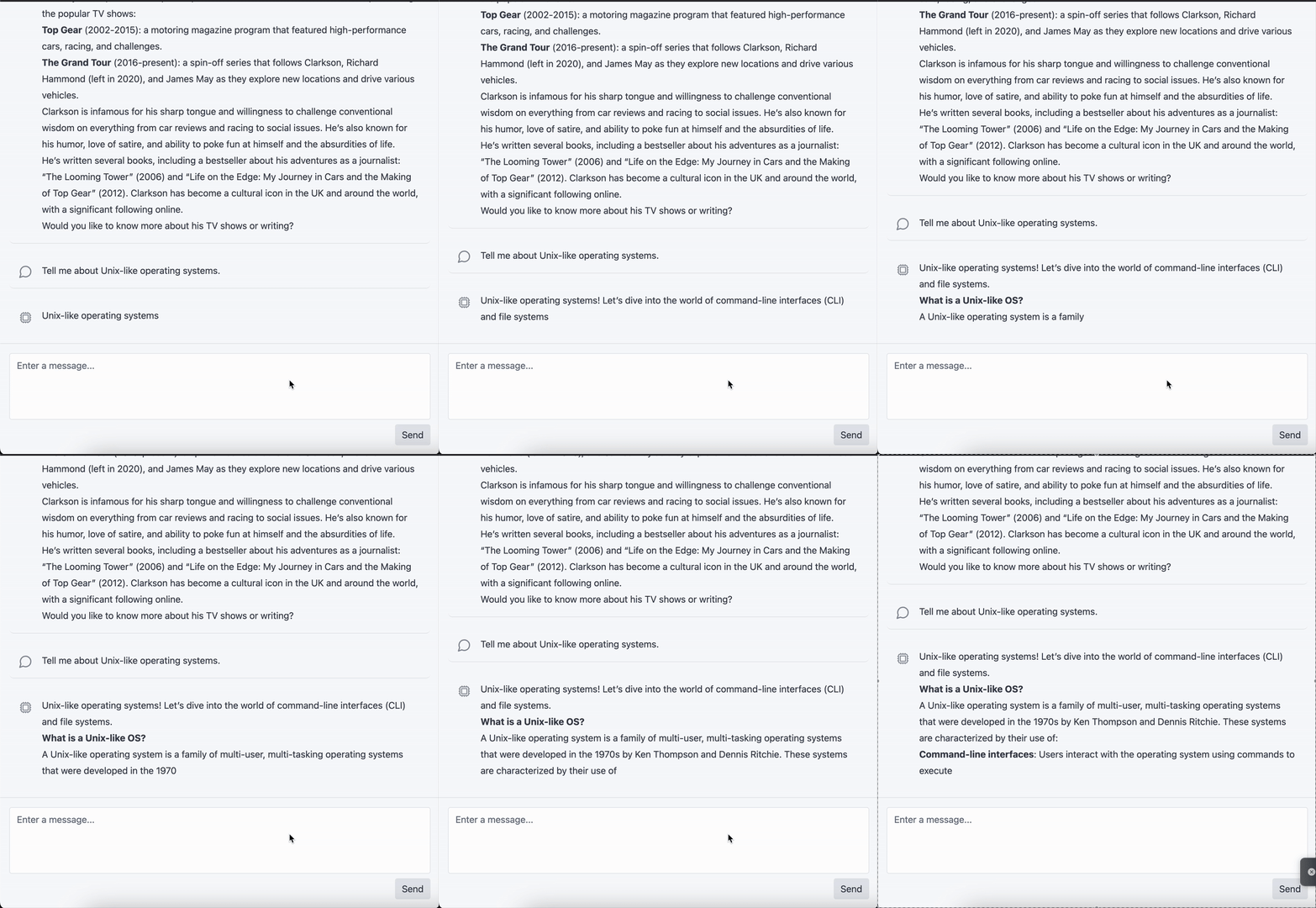
Part Three - Lessons Learned (and What’s Next)
While the setup works, there’s always room for improvement:
-
Better Chat Histories: Saving and displaying chat logs in a threaded view would be a big usability boost.
-
Stop the Model from Generating: I hate having to wait for my slop to be generated, when it's the wrong slop (and I can tell from the first few lines.)
-
Model Switching: Adding the ability to switch between different models on the fly.
-
Formatting Improvements: More sophisticated Markdown rendering, maybe even with syntax highlighting.
-
Multi-Modal Support: Supporting text-to-image models or even audio-to-text transcription for more fun.
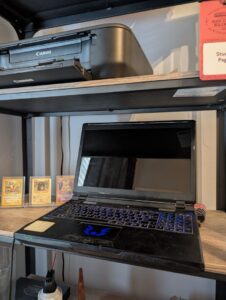 My old warhorse was finally put out to pasture.
There are a lot of laptops out there eying the landfill now that Windows 10 support is over, and that's just bad for everyone. But once you install Linux, there is a better way. Not everyone wants a private LLM server, but if you're stuck in this situation there's bound to be something you can do with that old machine. I hope at least I've inspired you there.
If you are interested in transforming your old laptop into your own private LLM server, the first thing I would do is check the minimum specs to run LM Studio. I'm pushing it with 8GB of RAM; 16GB is the minimum recommended size. A dedicated GPU will speed up generation; one minimum I found suggests at least 4GB of vRAM, another at least 6GB, but you get the picture. More is better.
The takeaway here should be that you most likely can run LM Studio on your old laptop. The size of the models you can run is limited by how much RAM you have, and the speed of the generation will vary depending on how fast your GPU is (or your CPU, depending on where you choose to offload the model layers). So give it a go: and if it doesn't work, you can happily lobotomize it into a media server, safe in the knowledge that that's all it's good for now.
If you want to check out my LiveView interface, you can find it over here on GitHub!
Building a Private LLM Server for Your Organization?
An old laptop is a great place to prototype. Running private AI for a whole company is a different job: who can see what, keeping each team's data separate, connecting the model to your own documents (RAG), and hardware that holds up when everyone uses it at once.
Revelry's AI team helps companies make those calls: on-prem or private cloud, which models fit, and how to get from a prototype to production. See how we build with AI, or tell us what you're working on.
Other Potential Uses for Old Windows Gaming Laptops
If you don't have the specs for it, these are some other potential solutions you can try besides running a private LLM server (and the reasons I decided against them).
- Wipe it and throw it away: This wasn't an option for me, because I'm sentimental, and this laptop is one of the few things I brought with me when I left the UK six years ago. It saw me through ~6 years of university and countless hours of gaming, and I bought it with money my late Grandad left me.
- Give it away to someone who needs it: When it comes to old laptops, give responsibly. For me, this would have been akin to giving all my 2000s plaid shirts to Goodwill - at the end of the day, my laptop is just outmoded and full of holes.
- Turn it into a Media Server and Storage: While this would have been cool, I decided against it, because nowadays you can buy a 128GB flash drive for $30. I'd rather just shove all my media on one or two of those, and stick it directly in my TV. And at the end of the day, I'd rather use my dedicated GPU, rather than just turning the laptop into a lobotomized zombie file system.
- Turn it into a Dedicated Gaming Console: Steam Big Picture mode is a thing; the problem is, I didn't like the look of the Venn Diagram of games Linux would run, games my laptop's hardware can run, and games I'd want to play. While the options have improved in recent years, that's still a pretty limited subset.
Hardware Not Up to It? Other Ways to Run an LLM Server
If your old machine just can't hack it, you've still got options:
- A desktop with lots of memory. Apple Silicon Macs share memory between the CPU and GPU, so a machine with 24GB or more handles mid-size models comfortably (my M4 certainly does).
- A used workstation with a dedicated NVIDIA GPU. A card with 12GB+ of vRAM opens up the 7B–14B range from the sizing table above.
- Rent a GPU in the cloud. Services like RunPod or DigitalOcean GPU Droplets let you try bigger models by the hour without buying anything. Just remember your data is leaving the house, which was the whole point of this exercise for me.